
IPTV Smarters Pro Fire TV Stick: here is the complete, step-by-step installation guide. Amazon's Fire TV Stick is probably the simplest and most popular device for using IPTV Smarters Pro on your TV. In this complete, up-to-date guide for 2026, you'll learn, step by step, how to install and configure IPTV Smarters Pro on Fire Stick — even if you're a complete beginner — and how to fix the most common issues (black screen, buffering, connection error…).
Allow less than 10 minutes for the installation. Follow the steps in order: by the end, you'll know how to use the app correctly on your Fire TV Stick.
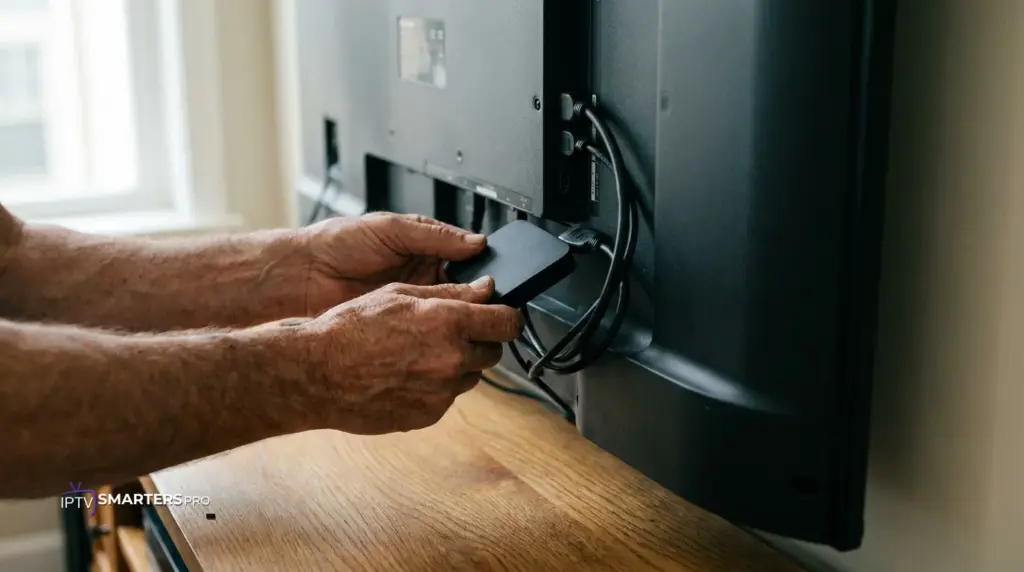
| Installation time5 to 10 minutes | DifficultyEasy (beginner) | Compatible devicesFire TV Stick Lite · HD · 4K · 4K Max · Fire TV Cube |
What this guide covers:
- ✓ Requirements before installation
- ✓ Step-by-step installation (Downloader method)
- ✓ Setting up your access (Xtream Codes)
- ✓ Common Fire TV Stick issues and fixes
- ✓ Tips and tricks for smooth playback
- ✓ Summary table + FAQ
What exactly is IPTV Smarters Pro?
IPTV Smarters Pro is a playback application (an IPTV player): it does not broadcast any content itself. It is used solely to enter the access details provided by a compatible service in order to play your subscription on the device of your choice.
It's a third-party, legal application used on many devices, including Amazon's Fire TV Stick.
In practice: you install the IPTV Smarters Pro app on your Fire Stick, enter your credentials, and access your service through a clear, familiar interface.
Requirements before installation
Before starting the IPTV Smarters Pro installation on your Fire TV Stick, make sure you have the following in place.
✅ The complete checklist
- ✓ A working Fire TV Stick (Lite, HD, 4K, or 4K Max) plugged into an HDMI port on your TV and powered on.
- ✓ A stable internet connection — ideally at least 15–25 Mbps for HD/4K. 5 GHz Wi-Fi or an Ethernet adapter is recommended.
- ✓ Your compatible access details: Xtream Codes credentials (username, password, server URL) or a connection link, received after activating your plan.
- ✓ The Fire TV remote or the remote control app on your smartphone.
- ✓ An Amazon account signed in on the Fire Stick.
- ✓ A little free storage space on the device.
Don't have access yet? Choose your IPTV Smarters Pro subscription: activation is immediate and your credentials are sent to you right after.
Why install IPTV Smarters Pro on Fire TV Stick?
The Fire TV Stick is one of the most popular devices for using IPTV Smarters Pro. Here's why it's an excellent choice:
- ✓ Fast installation — in just a few minutes via the Downloader app, no technical skills required.
- ✓ Affordable price — it's one of the cheapest streaming devices on the market.
- ✓ Smooth, familiar interface — Fire TV navigation is simple and ideal for IPTV Smarters Pro.
- ✓ 4K compatible — the 4K and 4K Max models offer high-definition playback.
- ✓ Alexa voice control — search and navigate by voice with the remote.
- ✓ Compact, portable format — take your Fire Stick anywhere and find your service again.
In short, IPTV Smarters Pro paired with the Fire TV Stick combines simplicity, performance, and a small budget: perfect for getting started.
Installing IPTV Smarters Pro on Fire TV Stick: step by step
On Fire TV Stick, the app isn't always available directly on the Amazon App Store. The most reliable and universal method is to go through the free Downloader app. Here is the complete procedure, detailed for beginners.
Allow installation of unknown apps
From the Fire Stick home screen, go to Settings → My Fire TV → Developer Options. Then enable « Apps from Unknown Sources » and allow the Downloader app.
Install the Downloader app
Go back to the home screen and open Search. Type « Downloader », select the app with the orange icon, then click Download / Get.
Download the IPTV Smarters Pro installation file
Open Downloader, go to the URL field and enter the link or download code provided for IPTV Smarters Pro. Then click « Go »: the .apk file download starts automatically. Downloader code: 6468112
Install the app on the Fire Stick
Once the download is finished, a window opens: click « Install », then « Done ». Downloader may then offer to delete the installation file to free up space.
Launch IPTV Smarters Pro
Go back to Home → Apps. IPTV Smarters Pro appears in the list. Open it and accept the terms of use.
Set up your access
On the login screen, choose « Login with Xtream Codes API » when this method is available. Then enter:
- a name for the profile,
- your username,
- your password,
- the server URL.
This information is provided to you after activation. Confirm with « Add User »: your service will load.
👉 For details on setting up your access, also check our installation and configuration guide, and the downloads-by-device page if you use other equipment.
Common Fire TV Stick issues and fixes
Here are the most common issues when using IPTV Smarters Pro on Fire Stick, and how to fix them quickly.
Black screen when launching a channel
Often related to the connection or video format. Restart the Fire Stick, check your speed, and in IPTV Smarters Pro, try changing the player in the playback settings.
Connection error / credentials refused
Re-enter your access details without spaces or typos. Check the server URL. If the problem persists, your access may have expired: contact our support.
Buffering / interruptions
Buffering is almost always caused by the network. Move the Fire Stick closer to the router, prefer 5 GHz Wi-Fi or an Ethernet adapter, close other bandwidth-heavy devices, and restart the router.
The app won't start / crashes
Go to Settings → Applications → Manage Installed Applications → IPTV Smarters Pro → Clear Cache and, if needed, Force Stop. If the problem persists, uninstall and reinstall the app.
Channels won't load / empty list
Check your connection and that your access is active. In the app, use the refresh option or reconnect your profile. A clean reinstall can also fix the problem.
The TV guide (EPG) is missing
The EPG can take a few minutes to load after the first connection. Leave the app open, then restart it. Also check that the EPG option is enabled in the settings.
The remote doesn't respond well in the app
Restart the Fire Stick, move the remote closer, or change the batteries. The Fire TV remote app on smartphone can also make entering your credentials easier.
Summary table
| Step | Action to take |
|---|---|
| 1 | Allow unknown apps in developer options |
| 2 | Install the Downloader app |
| 3 | Enter the link/code and download IPTV Smarters Pro |
| 4 | Install the app then delete the .apk file |
| 5 | Launch IPTV Smarters Pro |
| 6 | Log in via Xtream Codes (credentials + URL) |
| Issue | Quick fix |
|---|---|
| Black screen | Restart + change player in settings |
| Connection error | Check credentials + server URL |
| Buffering | 5 GHz Wi-Fi / Ethernet, move closer to the router |
| App crashing | Clear cache / reinstall |
| Channels won't load | Refresh, check access, reinstall |
| EPG missing | Wait + restart the app |
Tips and tricks for IPTV Smarters Pro on Fire TV Stick
- ✓ Prefer a wired connection: an Ethernet adapter for Fire Stick greatly reduces buffering.
- ✓ Restart the Fire Stick regularly to free up memory.
- ✓ Clear the app's cache from time to time for better performance.
- ✓ Keep IPTV Smarters Pro up to date to get fixes and new features.
- ✓ Choose a Fire TV Stick 4K / 4K Max if you want the best smoothness at high quality.
- ✓ Pin the app as a favorite on the home screen for quick access.
- ✓ Write down your credentials somewhere safe so you can reconfigure them easily.
Our recommended plans
Comfort
3 months€16.99ChooseAdvanced
6 months€24.99Choose👉 Full details and comparison on the IPTV Smarters Pro Subscription page.
FAQ — IPTV Smarters Pro on Fire TV Stick
Is IPTV Smarters Pro free on Fire TV Stick?
The app is free, but on its own it doesn't give access to any content. You need a compatible subscription to use it.
Do I need a subscription to use IPTV Smarters Pro?
Yes. IPTV Smarters Pro is a player: without access provided by a compatible service, it doesn't display any content.
Is IPTV Smarters Pro available on the Amazon App Store?
Not always, depending on region and version. That's why the method via the Downloader app described in this guide is generally used on Fire Stick.
Which Fire TV Stick models does it work on?
On compatible models such as Fire TV Stick Lite, HD, 4K, 4K Max, as well as Fire TV Cube. Availability may vary depending on the system version.
How do I set up my access (Xtream Codes)?
Choose « Login with Xtream Codes API », then enter your username, password, and the server URL provided after activation. Confirm with « Add User ».
Where do I find my IPTV Smarters Pro credentials?
Your access details are sent to you after your plan is activated. Check your inbox or contact support if you haven't received them.
Why do I have a black screen on Fire Stick?
Most often due to the connection or the video player. Restart the Fire Stick, check your speed, and try changing the player in the app's settings.
How do I reduce buffering on Fire TV Stick?
Improve your network: 5 GHz Wi-Fi or an Ethernet adapter, move the Fire Stick closer to the router, restart the router, and close other bandwidth-heavy devices.
What should I do if the app won't start or crashes?
Clear the app's cache, force stop it, then relaunch. If needed, uninstall and reinstall via Downloader.
How do I update IPTV Smarters Pro on Fire Stick?
Download the compatible version again via Downloader and install it over the existing one when this method is supported.
Do I need a VPN to use IPTV Smarters Pro?
It's not required. The app works with or without a VPN depending on your setup and network.
How do I set up the TV guide (EPG)?
The EPG generally loads automatically after the first connection. Check that it's enabled in the settings, then restart the app if needed.
Can I use IPTV Smarters Pro on multiple devices?
This depends on your plan, particularly the number of screens allowed. Check the Subscription page to choose the right plan.
How do I uninstall / reinstall the app?
Settings → Applications → Manage Installed Applications → IPTV Smarters Pro → Uninstall. Then reinstall via the Downloader method.
Is the service suited for use anywhere?
Yes, Strong8K serves customers worldwide with multilingual support. Quality may vary depending on your connection, device, and available conditions.
Conclusion
You now know how to install and set up IPTV Smarters Pro on Fire TV Stick from start to finish, and how to fix the most common issues: black screen, buffering, connection error, or the app crashing. With a Fire TV Stick, a good connection, and your access details, enjoying your service becomes simple.
Ready to watch on your Fire TV Stick?
Choose your compatible IPTV Smarters Pro subscription: fast activation, guided setup, and multilingual support after your order.
Choose my subscription →📚 Other guides: Samsung Smart TV · LG Smart TV · Android TV · Installation guide · All our guides · Configure Xtream · Where to find your access