
IPTV Smarters Pro Samsung Smart TV: here is the complete, step-by-step installation guide. Do you have a Samsung Smart TV running Tizen and want to enjoy your IPTV service? This up-to-date guide for 2026 explains everything, including what to do when the app no longer appears in the Samsung Store.
Follow the steps in order: connecting, finding the app, setting up your access, and troubleshooting solutions. Allow about 5 minutes.
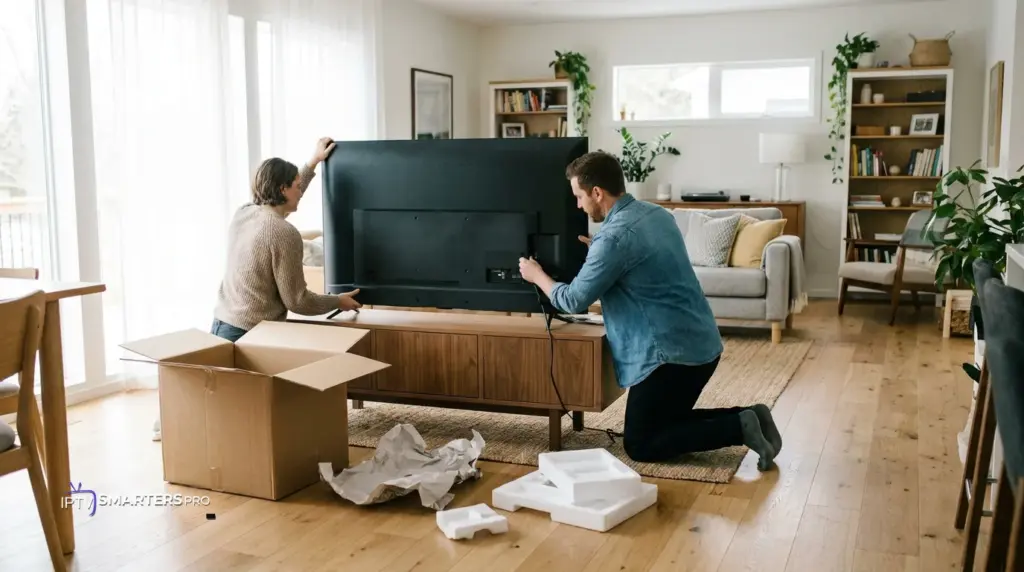
| Installation time5 to 10 minutes | DifficultyEasy (beginner) | Compatible withSamsung Smart TV Tizen — 2019 models and newer |
What this guide covers:
- ✓ Requirements before installation
- ✓ Why use a Samsung Smart TV
- ✓ Step-by-step installation (Smart Hub)
- ✓ What to do if the app isn't available
- ✓ Setting up your access (Xtream Codes)
- ✓ Common issues and fixes
- ✓ Summary table + FAQ
What is IPTV Smarters Pro?
IPTV Smarters Pro is a playback application (an IPTV player): it does not broadcast any content itself. It is used solely to enter the access provided by a compatible service, such as Strong8K, to play your subscription on your TV.
It's a third-party, legal application used worldwide. It's compatible with many devices, including Samsung TVs running Tizen.
Requirements before installation
Before you start, gather these items. This avoids the vast majority of issues.
✅ The complete checklist
- ✓ A recent Samsung Smart TV — Tizen, 2019 models or newer recommended.
- ✓ A stable internet connection — 5 GHz Wi-Fi or an Ethernet cable, ideally 15–25 Mbps for HD/4K.
- ✓ Your compatible access details — Xtream Codes credentials: username, password, server URL, received after activation.
- ✓ The Samsung remote and a Samsung account — signed in on the TV.
Don't have access yet? Choose your IPTV Smarters Pro subscription: instant activation, credentials sent right after.
Why install IPTV Smarters Pro on Samsung Smart TV?
Using your Samsung Smart TV directly has real advantages:
- ✓ No extra device needed — everything happens on the TV, no external box.
- ✓ Smooth Tizen interface — Samsung navigation is fast and well integrated.
- ✓ Great picture quality — Samsung panels render HD and 4K very well.
- ✓ A single remote — everyday convenience.
- ✓ Fast installation — just a few minutes via the Smart Hub.
Installing IPTV Smarters Pro on Samsung Smart TV: step by step
Connect the TV to the internet
Go to Settings → General → Network and check that your Samsung is connected via Wi-Fi or Ethernet. A stable connection is essential.
Open the Smart Hub
Press the Home / Smart Hub button on the remote, then go to Apps, the applications icon.
Search for the app
Click the magnifying glass in the top right and type « Smarters » or « IPTV ». If a compatible playback app appears, select it.
Install
Click Install and wait a few seconds. The app is then added to your app list.
Log in with your access details
Open the app, choose « Login with Xtream Codes API » and enter your username, your password, and the server URL. Confirm: your service will load.
👉 Also check out our Fire TV Stick guide, or contact our support if you need help.
Common Samsung Smart TV issues and fixes
The app doesn't appear in the store
Check your model and year. Use an equivalent Tizen player or an external device if needed.
Black screen when launching a channel
Restart the TV for about 30 seconds, check your connection, and try changing the player in the app's settings.
Connection error / credentials refused
Re-enter your access details without spaces or typos. Check the server URL, username, and password.
Buffering
Prefer an Ethernet cable, move the router closer, close other bandwidth-heavy devices, and restart your router.
The app crashes or closes
Close it completely, then relaunch. If needed, uninstall and reinstall the app. Also keep your Samsung firmware up to date.
Tips and tricks for IPTV Smarters Pro on Samsung Smart TV
- ✓ Prefer Ethernet for maximum stability.
- ✓ Update your Samsung's firmware: Settings → Support → Software Update.
- ✓ Restart the TV from time to time to free up memory.
- ✓ Write down your credentials somewhere safe.
- ✓ Keep the app up to date to get the latest fixes.
Summary table
| Step | Action to take |
|---|---|
| 1 | Connect the Samsung to the internet (Wi-Fi/Ethernet) |
| 2 | Open Smart Hub → Apps |
| 3 | Search for « Smarters » / IPTV |
| 4 | Install the app |
| 5 | Log in via Xtream Codes |
| If unavailable | Equivalent Tizen player or external Fire Stick device |
| Issue | Quick fix |
|---|---|
| App missing from store | Equivalent player / external device |
| Black screen | Restart + change player |
| Connection error | Check credentials + server URL |
| Buffering | Ethernet, move router closer |
| App crashing | Relaunch / reinstall, update firmware |
Our recommended plans
- ✓ 1 screen
- ✓ 40,000+ channels & VOD
- ✓ HD / Full HD / 4K
- ✓ Instant activation
Comfort
3 months€16.99ChooseAdvanced
6 months€24.99Choose👉 Full details and comparison on the IPTV Smarters Pro Subscription page.
FAQ — IPTV Smarters Pro on Samsung Smart TV
Is IPTV Smarters Pro free on Samsung Smart TV?
The app or player used may be free or paid depending on the store. In every case, the app alone doesn't provide any content. You need compatible access to use it.
Why is IPTV Smarters Pro no longer in the Samsung Store?
Its availability can vary by region and model. Use an equivalent Tizen player or an external device such as a Fire TV Stick.
Which Samsung models are compatible?
Samsung Smart TVs running Tizen, ideally from 2019 onward, generally offer the best compatibility.
How do I set up my Xtream Codes access?
Choose Login with Xtream Codes API, then enter your username, password, and server URL.
Where do I find my credentials?
They are sent to you after your plan is activated. Check your inbox and spam folder.
Do I need an external box for my Samsung?
Not necessarily. If a compatible app is available on your TV, no box is needed. Otherwise, a Fire TV Stick is a simple solution.
Why do I have a black screen?
The problem is often due to the connection or the video player. Restart the TV, check your speed, and change the player if the app allows it.
How do I reduce buffering on Samsung?
Switch to Ethernet if possible, move the router closer, reduce the number of active devices on the network, and restart the router.
Do I need to update my Samsung Smart TV?
Yes. Keep the firmware up to date to improve app compatibility.
Do I need a VPN?
It's not required. The app works with or without a VPN.
How do I set up the EPG TV guide?
The EPG generally loads automatically after connecting. Wait a few minutes, then restart the app if needed.
Can I use the service on multiple devices?
This depends on your plan, particularly whether you chose 1 or 2 screens.
How do I reinstall the app?
Uninstall it from your app list, then reinstall it from the store or use an equivalent player.
Is 4K quality available?
Yes, depending on your TV, your subscription, the available content, and your internet connection.
Is the service suited for use anywhere?
Yes, Strong8K serves customers worldwide with multilingual support.
Conclusion
You now know how to install and set up IPTV Smarters Pro on Samsung Smart TV, and what to do if the app isn't available.
With your Xtream Codes access and a good connection, enjoying your service on your Samsung TV becomes simple.
Ready to watch on your Samsung Smart TV?
Choose your compatible IPTV Smarters Pro subscription: instant activation, guided setup, and multilingual support.
Choose my subscription →📚 Other guides: Installation guide · Fire TV Stick · LG Smart TV · Android TV · Downloads by device · All our guides · Configure Xtream · Where to find your access